
When running a multi-depot operation in your Stream account, you can quickly switch between depots using the ‘Depot’ button in the main header. This also enables the ability to select multiple depots at a time.
Selecting depots
To select a depot:
- Click the ‘Depot’ button in the main header to open the Depot Select pop-up

- Here you will see the list of the available depots you can select from, which will be determined by your user privileges, and/or which depot group you are assigned to. Learn about Depot Groups
- All Depot user – This is any user that is not assigned to a specific depot group, and that is not marked as a ‘Single depot user’. This type of user will see a list of all depots, followed by a list of all depot groups and their associated depots.
- Depot Group user – This is any user that has been assigned to a specific depot group, and is not marked as a ‘Single depot user’. This type of user will only see a list of all the depots contained within the depot group that they are assigned to.
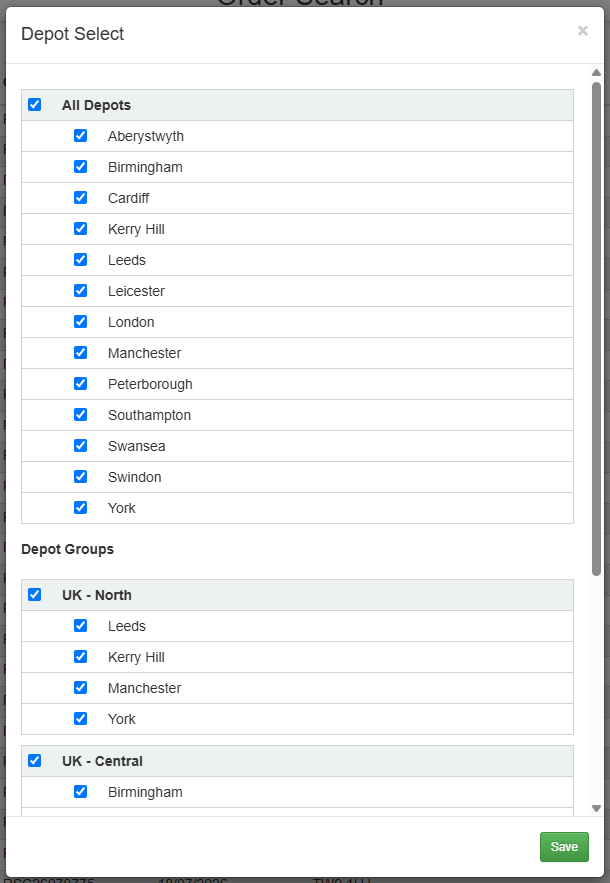
- Use the checkboxes to select/deselect the relevant depots. You can use the ‘Select All/Deselect All’ checkbox at the top of a section to check/uncheck in bulk. If a depot is in multiple depot groups (including the ‘All Depots’ list for an All Depot user), its checked status will be updated in each section.
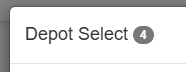
- As you enable/disable checkboxes against depots, you will see a counter in the header of the pop-up to show how many depots you have selected.
- Once you have confirmed your selection, click ‘Save’.
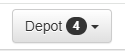
The depot button counter in the main header will now reflect how many depots you currently have selected.
Your depot selection will be preserved when navigating between the various screens in Stream. To reset your selection, you will need to reopen the Depot Select pop-up and change your selected depots.