
You can send push notifications about a run to the assigned driver via the planning screen in Stream.
When to use push notifications
Some use cases for push notifications include:
- To update a driver that there is a new run assigned to them
- To update a driver when a change has been made on a run they are either assigned to, or currently performing
Send a push notification to the driver
To send a push notification to the assigned driver on a run:
- Select the run in the ‘Runs’ list
- Click Actions
- Click ‘Notify Driver’
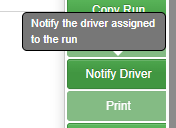
- In the popup window, enter a title and a message for the notification
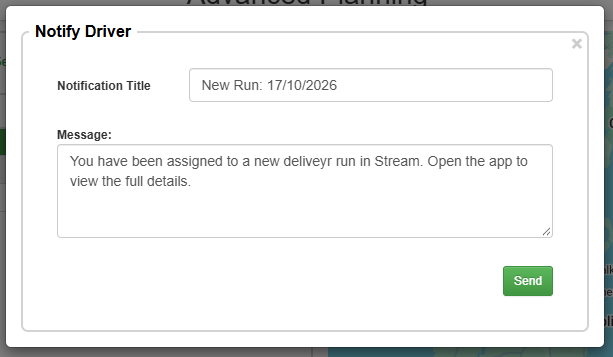
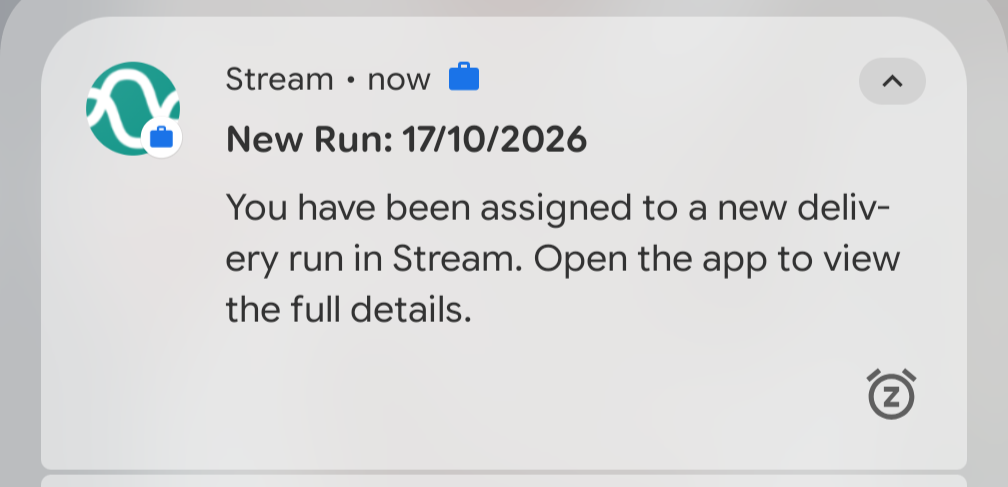
- Click ‘Send’. You will receive a confirmation that the notification has been sent, and the driver will receive the notification on their device.
Automatically notify drivers when closing a run
You can also enable a setting to automatically notify the driver when a run that they are assigned to is marked as ‘Closed’, which is the point at which the run becomes available for the driver to view in the mobile app.
To enable this:
- Click ‘Settings’ in the main menu
- Click the ‘Planning’ tab in the left sidebar
- Scroll down to the ‘Run Management’ section
- Enable the ‘Auto notify driver upon run close’ setting
- Click ‘Save’
Now, when a driver is assigned to a run and it gets marked as closed, they will receive a push notification to let them know.