
If a user who has previously been marked as a ‘leaver’ returns to your business, or a suspended employee requires system access again, you can easily reinstate their account profile.
Locating inactive users
Before you can reinstate an account, you must update your user search filters to view profiles that are hidden from the standard active list view.
- From the main menu, navigate to ‘Users & Drivers’
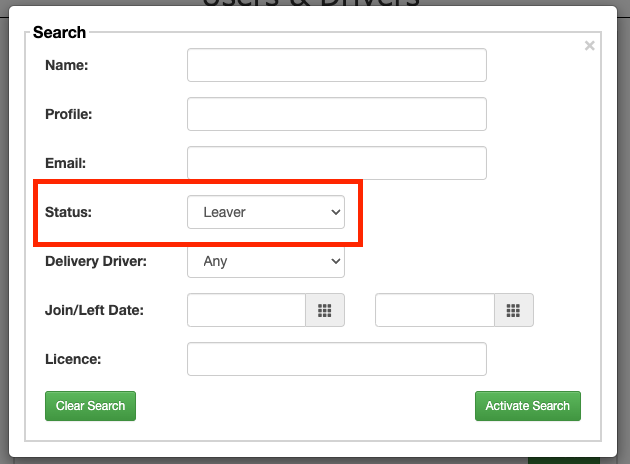
- Click the ‘Search’ button
- Locate the ‘Status’ drop-down menu
- Change the status filter from ‘Active’ to ‘Any’, ‘Leaver’, or ‘Suspended’
- Click ‘Search’ to refresh the list
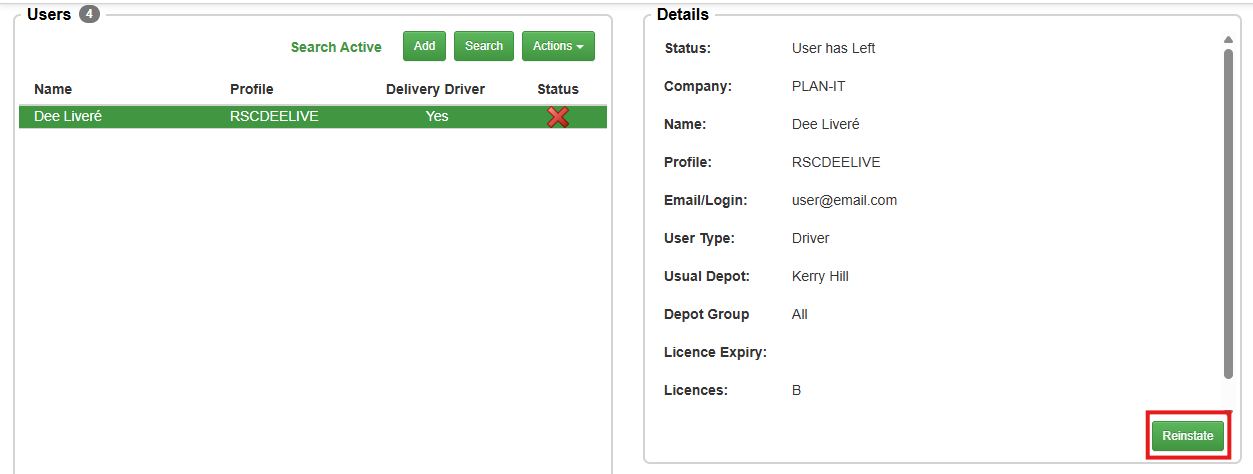
Inactive users will display with a red ‘X’ icon next to their names to confirm their access is currently revoked.
Reinstating a user
- From the filtered search results list, single-click the inactive user to select them
- Click the ‘Reinstate’ button at the bottom of the Details section
- Click ‘Yes’ on the confirmation pop-up window to verify the change
Upon successful reinstatement, Stream automatically triggers a secure email notification containing a password reset to the user.
A confirmation pop-up window will appear on your screen advising you that a password reset link has been sent to the user’s registered email address, allowing them to instantly set up their credentials and log back into the system.