
In Stream, it is only possible to permanently delete a vehicle if there has been no recorded activity against the vehicle. This is to ensure that historical events and audit trails associated with each vehicle are preserved for compliance purposes.
If a vehicle has recorded activity against it, you can instead remove the vehicle from active use on the platform by setting a disposal date against it.
Permanently deleting a vehicle
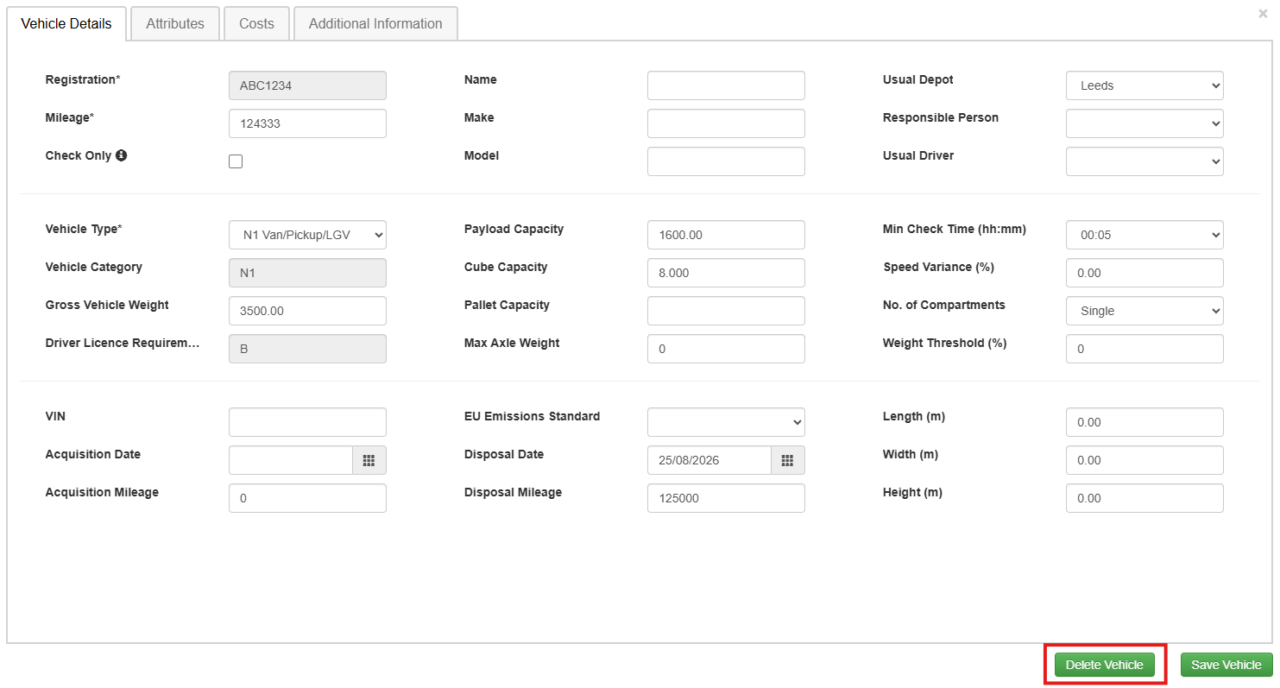
If you have created a vehicle in error and it has not yet been used in Stream, it can be permanently deleted
To permanently delete a vehicle:
- From the main menu, navigate to ‘Vehicle Details’
- Select the vehicle from the list and click ‘Edit’
- Click the ‘Delete’ button at the bottom of the window
- Click ‘Yes’ on the confirmation pop-up window
Removing a vehicle from active use
To retain historical records such as walkaround checks, reported defects, and completed deliveries, vehicles are generally marked as ‘inactive’ by inputting a disposal date.
A vehicle can only be permanently deleted if it has no historical data attached to it (such as checks, defects, or assigned delivery runs). If operational records exist, the system will block permanent deletion to preserve audit compliance, and the vehicle must instead be archived using the Disposal Date field.
To remove the vehicle from active use:
- From the main menu, navigate to ‘Vehicle Details’
- Select the vehicle from the list and click ‘Edit’
- Enter a date into the ‘Disposal Date’ field:
- Select today’s date or a date in the past to archive the vehicle immediately
- Select a future date to schedule the vehicle’s retirement in advance
- (Optional) Enter the final odometer reading into the ‘Disposal Mileage’ field for your internal records
- Click ‘Save’
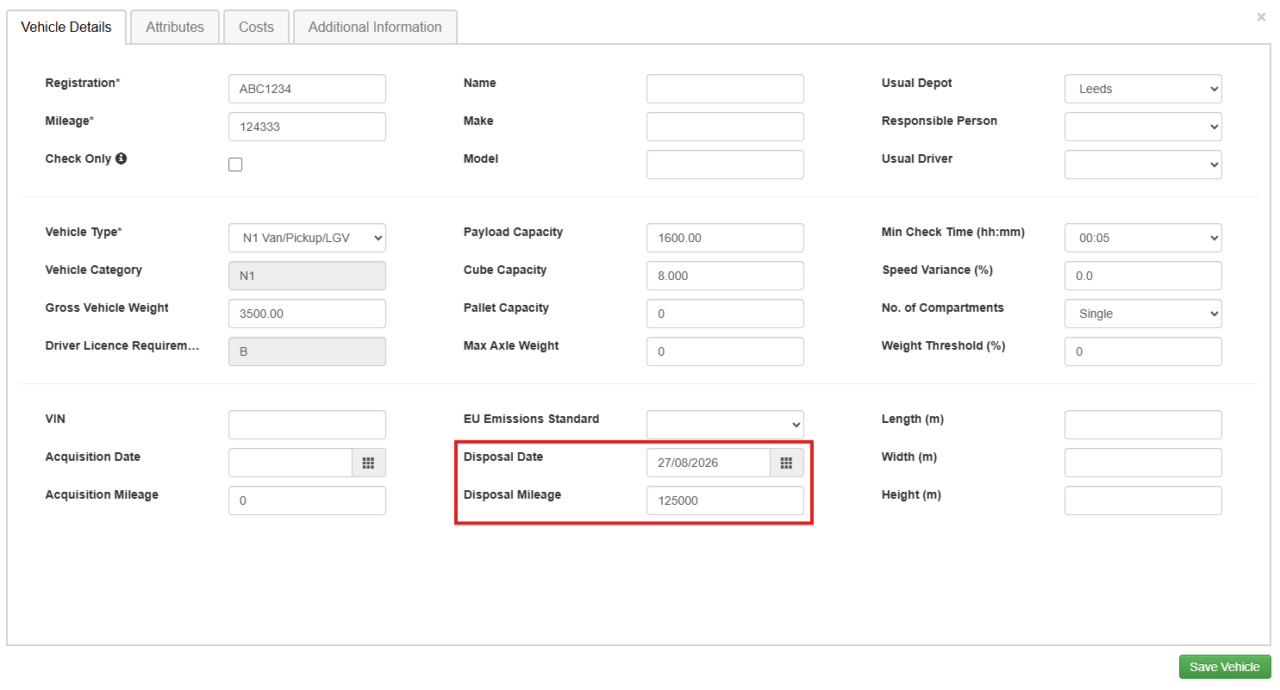
Once the disposal date is reached, the vehicle will become inactive and will be hidden from your active vehicle lists and also hidden in the vehicle select list on the Advanced Planning screen.