
Adding new users and drivers allows to your teams to access the relevant parts of Stream based on their operational role.
Adding a new user
To create a new user in Stream:
- From the main menu, navigate to ‘Users & Drivers’
- In the ‘Users’ list, click the ‘Add’ button. The counter next to ‘Users’ will tell you how many users are visible in the list

- Fill out the user details in the pop-up window:
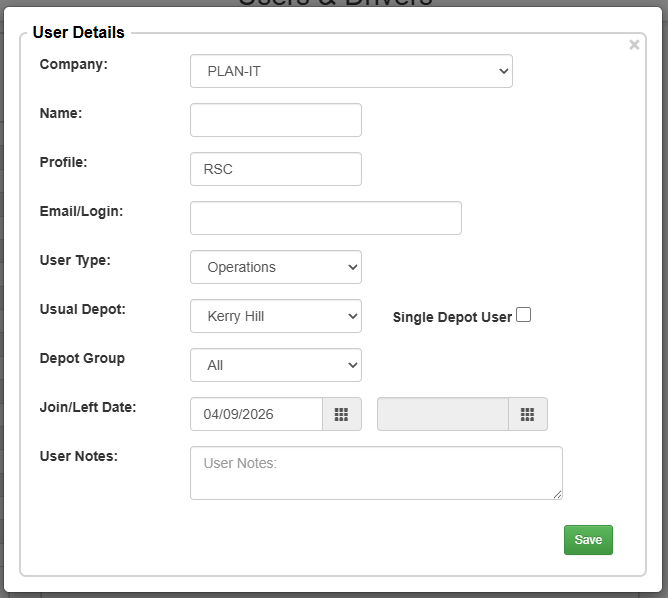
- Name: Enter the full name of the user
- Profile: This acts as the unique User ID required for logging into Stream. It automatically populates with a 3-letter prefix unique to your company account, followed by the first 7 characters of the user’s name. While the 3-letter prefix is required, the rest can be edited if needed.
- Email/Login: Enter the user’s corporate or individual email address.
- User Type: Select the role that defines the user’s system permissions and screen visibility.
- Usual Depot: Choose the user’s primary or “home” depot from the drop-down menu.
- Depot Group: If your company organizes locations into regional brackets, select the appropriate option from the list.
- Join Date: Enter the date the user began their employment or access period. If the date is in the future, the user won’t be able to log into the system until that date.
- User Notes: Use this free-text field to record any internal context or administrative notes regarding the user profile.
- Click ‘Save’ to create the user profile
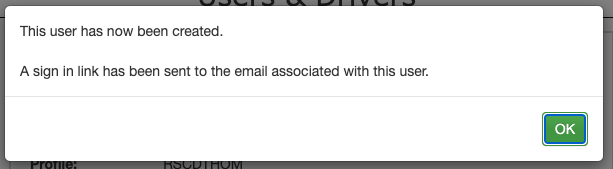
You’ll then get a notification saying that a sign in link has been sent to the email address you entered for the user, which they can click to set up a password for their account.
Restricting user access by depot or depot group
You can limit what a user is allowed to see in Stream based on their “Usual Depot” or “Depot Group”. This will restrict the user’s visibility so they can only see orders, runs, and information associated directly with their assigned home depot or group.
Please see our guide here which covers this in more detail: Managing Depot Groups
Adding users for Business Partners
If your Stream environment is configured with Business Partners, a ‘Company’ drop-down field will appear at the very top of the user creation window. Always verify this field before saving. You can use it to add a user directly to your own organisation or assign them to a Business Partner account, who will be able to access Stream as a Business Partner user.
For more information on our Business Partner functionality, please see our guide here: Adding a Business Partner