
Opening times allow you to specify operational hours for customers in Stream.
This can help you plan accurate runs, specifically for B2B operations, so that deliveries and collections can be planned for times when there will be someone on-site to receive and sign for their orders.
Currently, opening times need to be manually added to locations. They cannot be passed in via the API, or the Order Upload/Import.
Adding opening times to a location
To add opening times to a location:
- Go to the Order Details screen for the order which you would like to add opening times to
- In the ‘Order Details’ section, click ‘Edit’ on the customer location. (Opening times can also be set against the delivery address, if different from the Customer address)

- In the Location popup, click the ‘Opening Times’ tab
- Click the checkbox next to all days you wish to set opening times for
- Enter the opening and closing times in the time fields
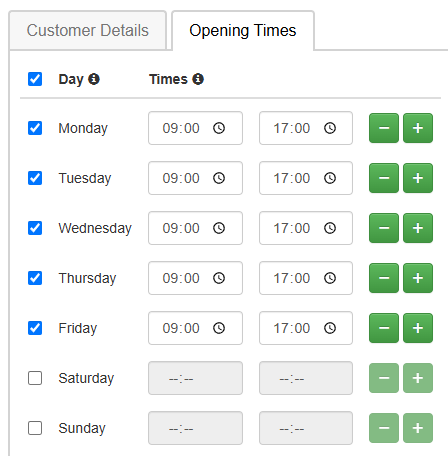
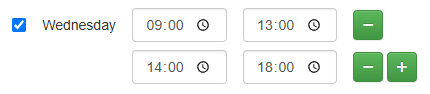
- If you need to enter multiple times for a given day, press the ‘+’ icon next to the row. (For example, if the business opens at 09:00 and closes at 13:00, but then reopens at 14:00 before closing for the day at 18:00.)
- Click ‘Save’ once you’ve entered all opening times for the location.
These opening times will now be applied to all future orders for this location, and will be used to help you when planning runs.
Planning stops for locations with opening times
When using Autoplan, opening times will be factored into the route sequencing if you enable the ‘Plan to Opening Times’ option when autoplanning your runs.
Automatic driver breaks will be added during the Autoplan process, where required, to ensure the stop time is within the opening hours for that particular location.
Opening times will also be used when optimising your routes on the planning screen.
Removing an opening time from a location
If you have added multiple opening times to a single day and need to remove one of them, simply click the ‘-’ (minus) icon next to the opening time to remove the row.
Alternatively, if you need to remove an entire day’s opening times, you can simply uncheck the box next to the day name, and it will mark that day as being ‘Closed’.