
Adding stops to your runs is one of the key stages of the delivery planning process.
Different users like to work in different ways, and that’s why there are several different options for adding stops to a run in Stream.
These features can all be accessed from the Advanced Planning screen in Stream.
Add stops by clicking map pins
The simplest way to add a stop to a run is to click the pin on the map:
- Select the run you wish to add stops to in the ‘Runs’ list
- Click the pin on the map to load that stop onto the currently selected run
Add stops using the map drawing tool
The map drawing tool allows you to click around orders on the map on the planning screen.
This is very useful for selecting stops within a specific area.
To add stops to a run using the map drawing tool:
- Select the run you wish to add stops to in the ‘Runs’ list
- Click the map drawing tool button
- Click on the map to make the points and draw a polygon around the selection you wish to make. Make sure to click the starting point at the end to complete the shape and make the selection. This will select all of these associated stops in the ‘Unplanned’ section
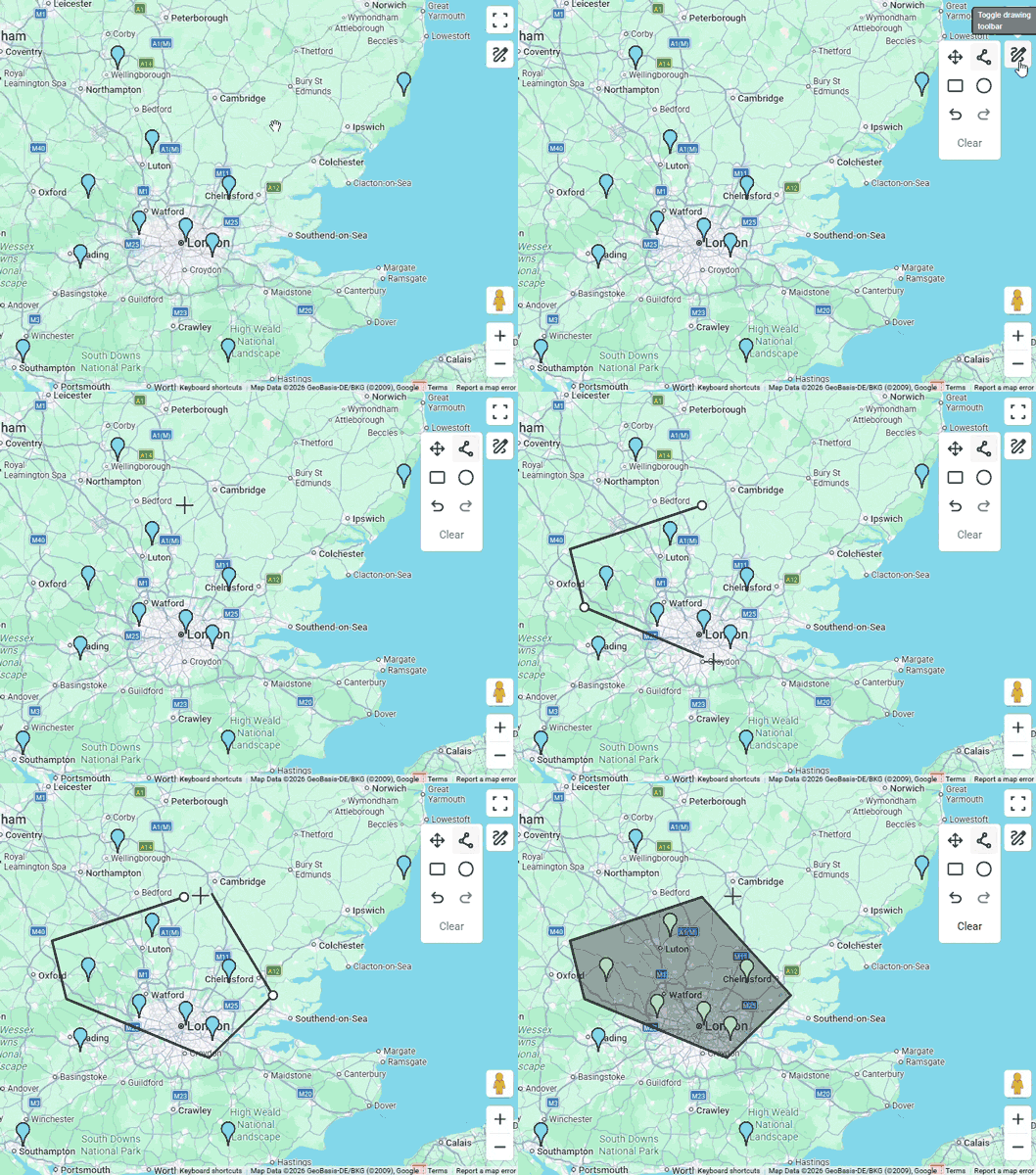
- In the ‘Unplanned’ section, click ‘Load’
- The stops will now be added to your run
Map drawing toolbar Options
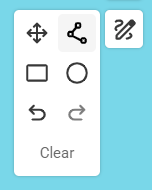
The map drawing toolbar includes options for:
- Move – Select an existing selected area and reposition it.
- Polygon Select – Draw a custom shape to select the stops
- Rectangle Select – Drag a rectangular shape to select the stops
- Circle Select – Drag a circular shape to select the stops. Ideal when working within a radius.
- Undo – Undo the previous selection action
- Redo – Redo a selection action after having used the ‘Undo’ button
- Clear – Clear all current selections from the map
Add stops using drag & drop
You can quickly add stops to a run using the classic method of drag and drop:
- Select the run you wish to add stops to in the ‘Runs’ list
- Select the orders in the ‘Unplanned’ list. Multi-selecting orders will also work when dragging and dropping runs.
- Click and drag the selection from the ‘Unplanned’ list into the ‘Selected Run’ section. If there are any stops already on the run, you can move the selection you are dragging up or down the sequence before dropping them.
Add stops using Load/Unload
To add stops to a run using load/unload:
- Select the run you wish to add stops to in the ‘Runs’ list
- In the ‘Unplanned’ section, select the orders you would like to load onto the run.
- Click ‘Load’.
Removing stops from a run
Stops can be removed in the same ways in which they were added. Once they are removed from the run, the stops will be returned to the ‘Unplanned’ section.
Create runs using Autoplan
Alternatively, you can automate the process of creating runs, adding stops, and optimising the routes using the Autoplan feature in Stream.
Autoplan can help you plan all of your runs in just a few clicks, saving valuable time and improving efficiency.
For help with this, check out our guide on Autoplanning runs.
Optimising a route
Once you’ve added all the stops to a run, you can click the ‘Optimise’ button to plan the stops into the most efficient sequence. This will provide ETAs for each stop.
If you would prefer to set the stop sequence manually, you can drag and drop the stops into the preferred sequence, and then click ‘Route’, which will calculate the ETAs for each stop.