
Depots is a core piece of functionality for helping businesses that are running multi-depot operations, but want to use a centralised system to manage their entire operation.
Orders, runs, vehicles, and users can all be assigned to specific Depots.
Users can be given access to multiple Depots using Depot Groups.
Enabling Depots
By default, the depot functionality is already enabled on your account. However, you will need to enable the ‘Depots’ menu item for any users that you wish to be able to add and edit depots.
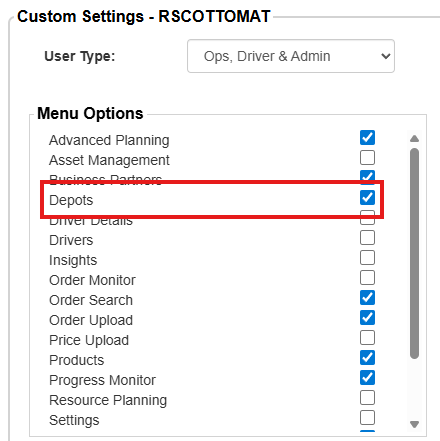
To turn Depots on for a user:
- Click ‘Users & Drivers’ in the main menu
- Double-click on the user in the ‘Users’ list that you wish to enable Depots for
- Click ‘Custom Settings’
- In the ‘Menu Options’ section, check the ‘Depots’ checkbox
- Click ‘Save’
The user will now be able to access the Depots screen to create and edit depots.
Adding a Depot
If the new depot will be used to plan delivery runs, you will also need to create ‘Delivery Methods’ for it.
To add a new depot:
- Click ‘Depots’ in the main menu
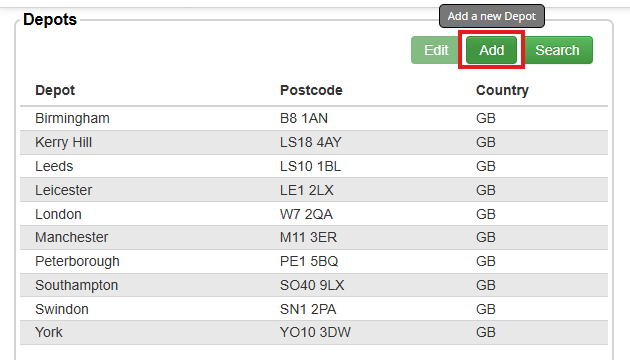
- In the ‘Depots’ list, click ‘Add’
- Enter a name for the depot, and then fill out the rest of the information for that depot.
- The Stock ID and Stock Location fields will be automatically populated when you enter the Depot Name, however these can be customised if you wish
- The postcode field will be used to set the default starting location for runs created for this depot.
- Click ‘Save’
- The popup will ask ‘Are you sure you want to create this depot?’, click ‘Yes’
The new depot will now be visible in your ‘Depots’ list
You can then set different ‘Delivery Methods’ for different depots. For more information on this, check out our guide on Managing Delivery Methods.
Deleting a Depot
Deleting a depot is only possible if it has never been used in Stream, IE, if it has not had any orders, vehicles, or users assigned to it.
If the depot is already in use, the ‘Delete’ button will be disabled and you will not be able to delete the depot.
To delete a depot:
- Click ‘Depots’ in the main menu
- Double-click on the depot to open the ‘Depot Details’ popup window
- At the bottom of the popup window, click ‘Delete’
- When it asks ‘Are you sure you want to delete this?’, click Yes
The depot will now have been removed from your account.