
Driver bookings allow you to manage staff availability by recording events such as annual leave, sickness, or training.
Adding a booking ensures drivers marked as unavailable cannot be accidentally allocated to delivery runs within the Advanced Planning screen.
Adding a driver booking
Driver bookings can easily be added by users with access to the ‘Users & Drivers’ page.
- Navigate to ‘Users & Drivers’ in the menu
- Select the driver from the ‘Users’ list on the left-hand side
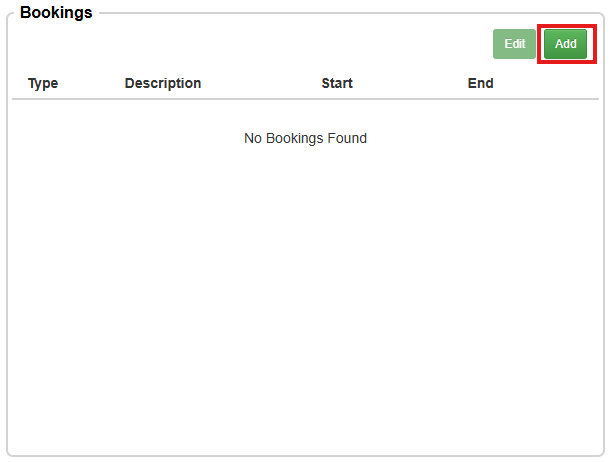
- Under the ‘Bookings’ section, click the ‘Add’ button
- Complete the booking details in the pop-up window:
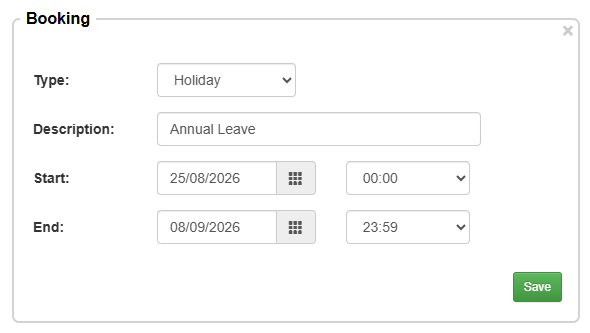
- Click ‘Save’
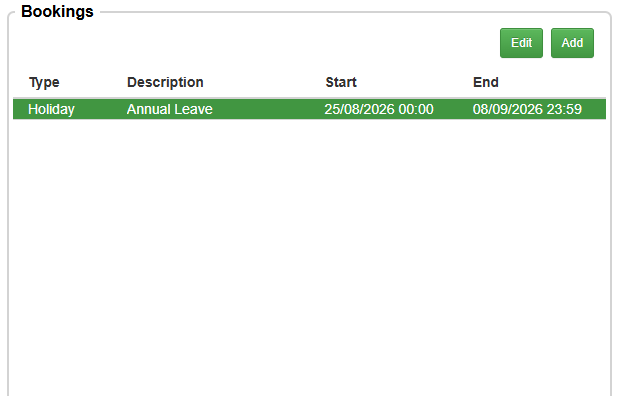
- Once saved, the booking will appear in the driver’s ‘Bookings’ list
Edit or delete a driver booking
To edit or delete a driver booking:
- From the main menu, navigate to ‘Users & Drivers’
- Select the driver from the ‘Users’ list
- Locate the ‘Bookings’ list and single-click the booking you want to update
- Click ‘Edit’
- Update the booking details as required and click ‘Save’, or click ‘Delete’ to permanently remove the booking