
This article explains what ‘unsent data’ is in the mobile app, why it happens, and how you can resolve it.
What is unsent data in the mobile app?
Unsent data refers to information that has been captured in the mobile app when the user performs actions, but this information has not been transferred to the Stream platform.
This includes things such as photos, signatures, notes, and any events that are automatically captured by the app during usage.
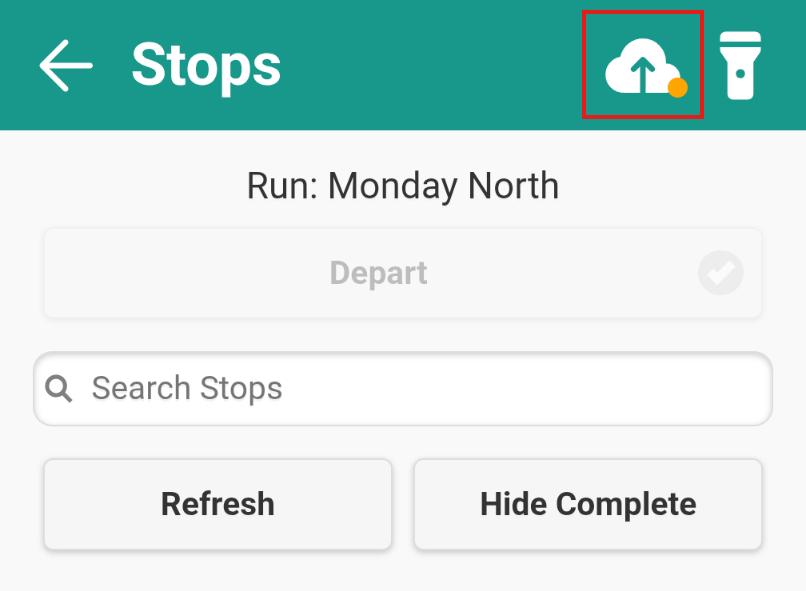
If your device has unsent data, an icon will appear in the top bar of the app, with a coloured status badge.
Why does the app have unsent data?
Unsent data most commonly occurs when there is a connection issue between the device being used and the network providing the data signal.
This could be an issue with the network itself, the device’s connection to it, or that the device has been turned to a mode which disables network connectivity.
How to resolve unsent data
Most of the time, unsent data will be resolved on its own as soon as the device regains connection with the network.
Make sure to check your phone hasn’t accidentally been switched into airplane mode, or had it’s data connection turned off.
Once the unsent data has been successfully transferred to the Stream platform, the unsent data icon will disappear from the top bar.
Any notifications that had previously not been triggered as a result of unsent data, will now be triggered and sent to their intended recipients.
Manually resolve unsent data
If you need to resolve any unsent data items manually, you can:
- Tap the ‘unsent data’ icon in the top bar
- On each item you will see:
- The date and time the action occurred
- How many attempts have been made to send the data
- What date and time the next attempt will be made
- Tap each item individually to try and push the data into Stream
If you are still having issues with unsent data in the app, please contact the Stream Support team
Unsent data icon status
The unsent data icon may have a different coloured badge depending on the current status of the data that the app has not transferred:
- If the icon has an orange badge
 , then the oldest data on the device is less than an hour old.
 - If the icon has a red badge
 , then the oldest data on the device is more than an hour old. The red icon will begin flashing if the oldest data on the device is more than a day old, indicating that action should be taken to send the data over to Stream.