
Uploading users is a useful way to add users to your account in bulk.
In this guide, we’ll walk you through the steps for uploading users to help ensure a successful upload.
Exporting the User Upload file
To upload users into Stream, you will first need to download the upload file into which you can add your users.
To download the file:
- Go to ‘Users & Drivers’ from the main menu in Stream
- In the ‘Users’ list, click Actions > Export
- In the ‘Export Type’ dropdown, select ‘User Upload Columns Export’
- Click ‘Export’
- Choose a folder to save the .csv file to and click ‘Save’
Adding users to the User Upload file
The table below details the columns on the User Upload file, and what format the data needs to be in.
| Column Name | Format | Notes |
|---|---|---|
| Name (Required) | Text MAX 40 characters | First and Last name of the user |
| Profile | Text (Alphanumeric) MIN 4 characters, MAX 10 characters (including the 3-character account prefix) | The user profile will not be created if the profile prefix does not match your account’s prefix. |
| Email address of the user | ||
| User Type (Required) | Text (to match options in select dropdown) | These control the menu options the user will have access to. Learn More Enter one of the following options: “Customer Services” “Driver” “Operations” “Ops & Driver” “Ops, Driver & Admin” |
| Usual Depot (Required) | Text | Enter the name of the default depot for this user to be assigned to |
| Single Depot User | Yes/No | Entering ‘Yes’ will restrict the user’s Stream access to the depot listed in ‘Usual Depot’ |
| Join Date | Date (DD/MM/YYYY) | The date the user/driver joined the company. |
| User Notes | Text MAX 700 characters | Enter any notes that need to be stored against this user |
| Licence No | Text MAX 17 characters | The driving licence number for the user. |
| Expiry Date | Date (DD/MM/YYYY) | The expiry date of the user’s driving licence |
| Licence A | Yes/No | Does the driver hold a Category A driving licence? |
| Licence B | Yes/No | Does the driver hold a Category B driving licence? |
| Licence B (AFV) | Yes/No | Does the driver hold a Category B (AFV) driving licence? |
| Licence C | Yes/No | Does the driver hold a Category C driving licence? |
| Licence C1 | Yes/No | Does the driver hold a Category C1 driving licence? |
| Licence C1E | Yes/No | Does the driver hold a Category C1E driving licence? |
| Licence CE | Yes/No | Does the driver hold a Category CE driving licence? |
| Licence D | Yes/No | Does the driver hold a Category D driving licence? |
| Licence D1 | Yes/No | Does the driver hold a Category D1 driving licence? |
| Licence D1E | Yes/No | Does the driver hold a Category D1E driving licence? |
| Service Skills | Text | Enter the service skills of the driver. Must match options created under the ‘Services’ section in your account Settings. Separate multiple options using the ‘pipe’ symbol – “|”. For example: “Installation|Assembly” |
| Using Turn | Yes/No | Does the driver require access to the Turn GPS mobile app? Requires Turn GPS subscription |
| Driver | Yes/No | Should the user be usable as a ‘Driver’ in Stream? |
| Engineer | Yes/No | Should the user be usable as an ‘Engineer’ in Stream? |
| User Language | Text (to match languages enabled in Stream) | Only appears on the Upload file export for companies with Multi-Language support enabled. |
Uploading the User Upload file
Once your upload file is prepared, you can now upload your users into Stream.
To upload the file:
- Go to ‘Users & Drivers’ from the main menu in Stream
- In the ‘Users’ list, click Actions > Upload
- In the popup, Check/uncheck whether to ‘Automatically send password reset emails’. If checked, an email will be sent to the email address for each newly created user, so they can create the password for their profile.
- Check/uncheck whether to ‘Automatically generate the profile (user ID) from the name if blank’. If this setting is not enabled, and the ‘Profile’ column in the upload file is left blank, then the user will not be created.
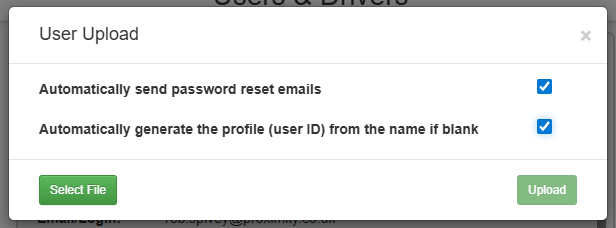
- Click ‘Select File’ and locate the user upload csv file you have just created
- Click ‘Upload’
Your users will now be uploaded into Stream and a confirmation message will be displayed.
If there are any validation issues, such as an incorrect data format, or spelling mismatches, then these fields will not be updated, and a warning will be shown.
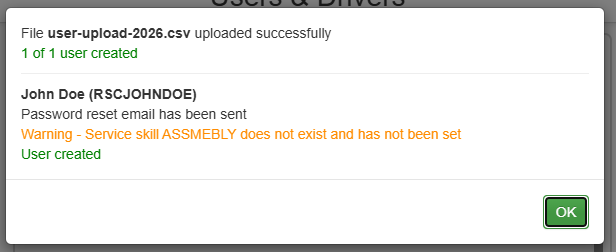
In this example, the word ‘Assembly’ was spelt incorrectly and therefore didn’t match the existing option available in Stream.