
This article will walk you through the steps for setting up, and managing Depot Groups.
What are Depot Groups?
Depot Groups are a way to categorise your new and/or existing depots in a meaningful way.
For example, a general use case is to group your depots by geographic location, making it easier for ‘Regional Managers’ (or similar) to have access only to the specific depots they need.
Enabling Depot Groups
Currently, in order to access the Depot Groups functionality, it first needs to be enabled on your account by a member of the Stream Support team. Request Depot Groups Access
Once enabled, you will then be able to assign specific users to have access to the Depot Groups setup screen, which will be used for the creation and management of your Depot Groups.
To enable Depot Groups for a user:
- Click ‘Users & Drivers’ in the main menu
- Double-click on the user you want to give Depot Group access to
- Click ‘Custom Settings’
- In the ‘Menu Options’ section, check the ‘Depot Groups’ checkbox
- Click ‘Save’
Any users who are granted access will now be able to access the ‘Depot Groups’ screen from their main menu.
Creating a Depot Group
To create a depot group:
- Click ‘Depot Groups’ in the main menu
- In the ‘Depot Groups’ section, click ‘Add’
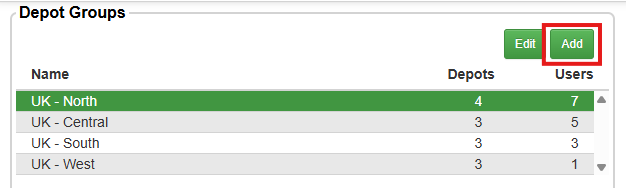
- Enter a name for the new depot group
- Click ‘Save’
Your new Depot Group will now be visible in the ‘Depot Groups’ list.
Assigning depots to a Depot Group
To assign depots to a group on the Depot Groups screen:
- Select the Depot Group you wish to add the depots to
- In the ‘Depots’ section, check the box next to all depots that you wish to be included in the selected group
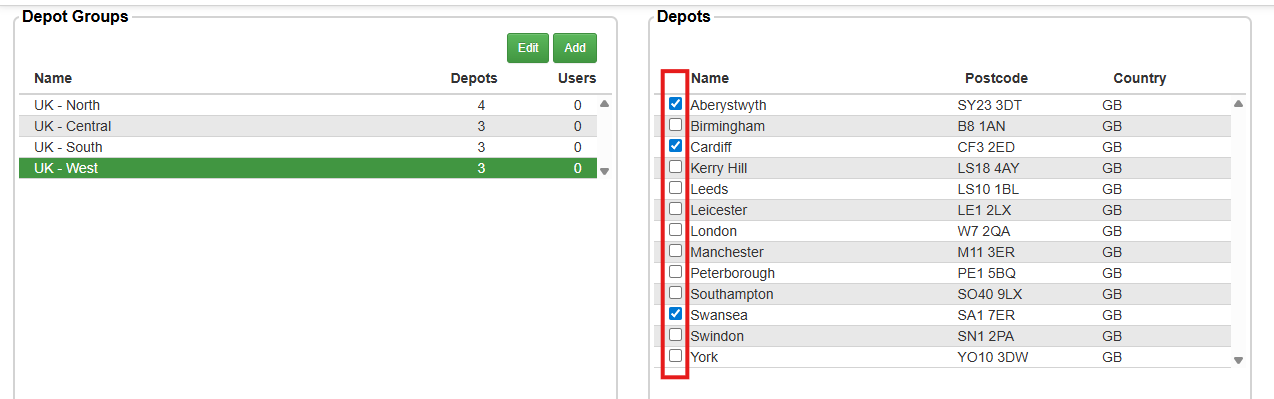
Your updates will be automatically saved whenever you check or uncheck the box next to a depot.
Assigning users to a Depot Group
Currently, by default, a user will be assigned to ‘All Depots’ unless they have been assigned as a ‘Single Depot User’.
To assign a user to a Depot Group:
- Click ‘Users & Drivers’ in the main menu
- Double-click on the user in the ‘Users’ list
- In the Depot Group dropdown menu, select the Depot Group you wish to assign this user to. The user’s ‘Usual Depot’ must be a depot contained with the selected Depot Group, unless ‘All’ is selected.
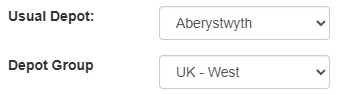
- Click ‘Save’
The user will now only have access to information relating to depots contained within the assigned Depot Group.
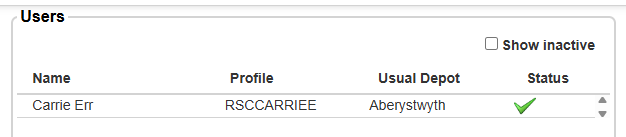
You can view all users who are assigned to a specific Depot Group in the ‘Users’ section on the Depot Groups screen.
Assigning a user as a Single Depot User
You may want a specific user to have access only to information related to a single depot’s operations.
For this, you have the ability to assign them as a ‘Single Depot User’.
To assign a user as a Single Depot User:
- Click ‘Users & Drivers’ in the main menu
- Double-click on the user in the ‘Users’ list
- In the ‘User Details’ popup window, ensure the user has the correct depot assigned in the ‘Usual Depot’ field
- Click the checkbox next to ‘Single Depot User’

- Click ‘Save’
This user will now only be able to access information relating to their assigned Usual Depot’s operation.
Deleting a Depot Group
There may be some instances where you need to delete a Depot Group, such as when one has been created incorrectly, or when you are wanting to change your Depot Group structure.
To delete a Depot Group:
- Click ‘Depot Groups’ in the main menu
- In the Depot Groups list, click on the group you wish to delete
- Click the ‘Edit’ button
- Click the ‘Delete’ button
The Depot Group will now be removed from the list and will no longer be usable within Stream.