
Customising the location map pins on an address helps you fine-tune your delivery locations and instruct your drivers on how to access these destinations.
Types of customer location pins
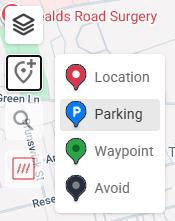
There are several different map pins that you can add and edit on a customer location:
| Pin Icon | Pin Title | Description |
|---|---|---|
 | Location | The standard location pin indicates the delivery or collection location. This is added by default when the address is entered, but can be moved to a more specific location using the steps detailed below. |
 | Parking | Adds a map pin that can be used if the parking location at the address differs from the delivery location. Drivers will be presented with routing options for both the delivery and parking locations for the stop in the app. |
 | Waypoint | Adds a map pin, which will force the route navigation app to route via this particular pin location. (Only available when using the Turn Navigation app) |
 | Avoid | Adds a map pin, which will force the route navigation app to avoid routing through this particular pin location. (Only available when using the Turn Navigation app) |
How to customise delivery/collection location pins or add a parking location
To add/edit a custom map pin on a customer location:
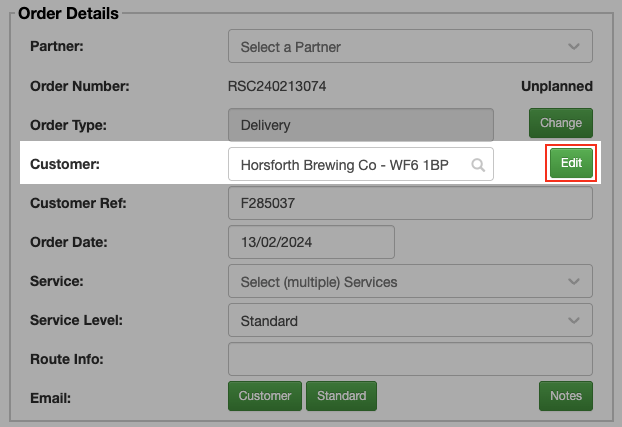
- Open the Order Details screen for the order you wish to update the location on
- Click the ‘Edit’ button next to the ‘Customer’ field in the Order Details panel
- In the pop-up window, click the ‘Add Map Pin’ button on the map interface
- Select the type of map pin that you wish to add
- Once you have selected the map pin, there are three ways you can add it to the map:
- Click on the map in the position you wish to add the pin
- Click the search icon to use the inline Google Maps search and select an address from the list to place the pin
- Click the what3words icon to enter a specific what3words address to place the map pin
- If using Waypoint/Avoid pins, please note these need to be added in the correct sequence, as detailed in the How to customise route access to a location/address section below.
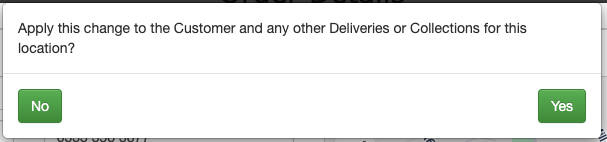
- Click ‘Save’ in the bottom right corner of the pop-up window. If you have added the pins to the delivery location for a single delivery, it will ask if you want to also apply the change to the customer location, and any other deliveries/collections for this location.
How to customise route access to a location/address
You can use Waypoint and Avoid map pins to provide specific access routes to a delivery location.
This can be incredibly useful when accessing stops with specific access instructions, or when there are areas/zones with vehicle restrictions, or even just when you want drivers to take specific routes to access a stop.
Follow the steps detailed above to add custom Waypoint and Avoid map pins to an address.
When using Waypoints and Avoids, you will be able to click multiple times, each click will add a new pin for the current type selected.
How to delete/remove custom map pins
If you add a map pin in error or no longer require that specific map pin, you can simply click the pin on the map to remove it.