
Having the visibility to manage by exception is the key to efficient, effective logistics operations.
It gives you the ability to manage the jobs that are outside of planned times, rather than having to guess or dig for information.
When deliveries go exactly to plan, that’s great news for business.
But when does everything run to plan in a logistics operation, and what happens when it doesn’t quite go to plan?
Well, that’s when you need to be able to quickly view relevant information and start taking action.
And that’s exactly what you get with the new Order Monitor summary cards.
What are the Order Monitor summary cards?
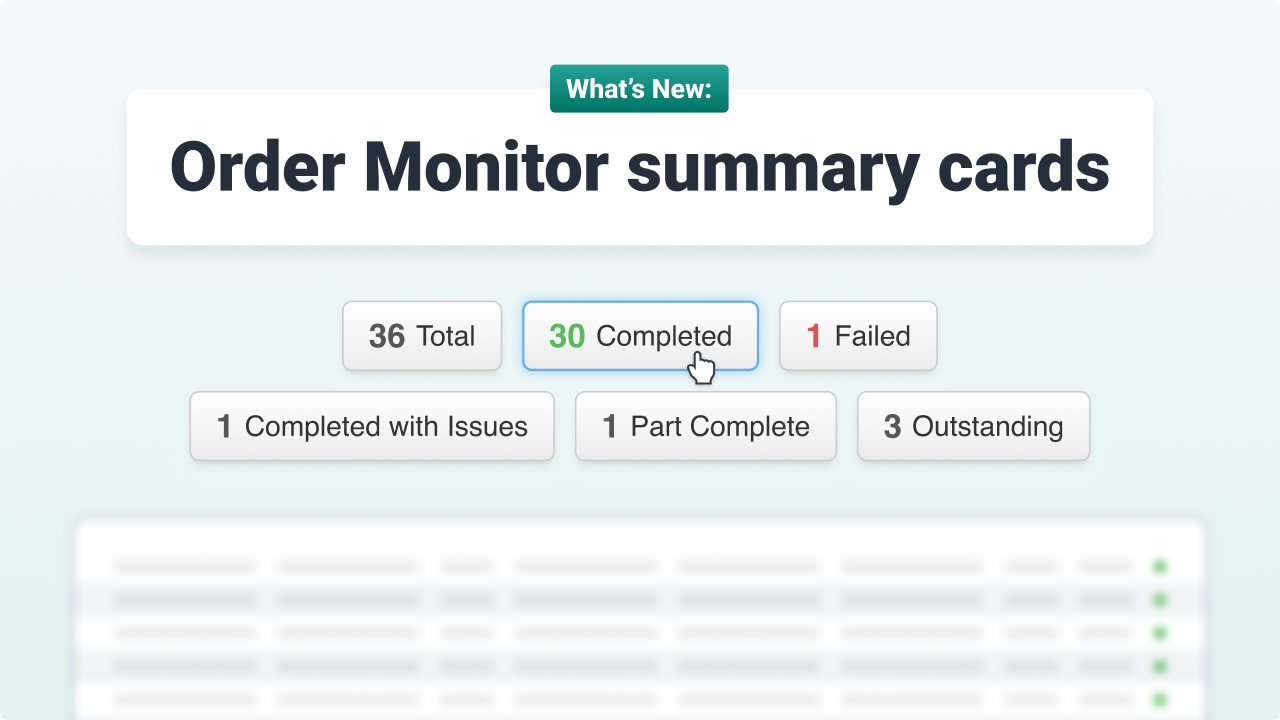
The new Order Monitor summary cards appear at the very top of the Order Monitor, giving you a clear, categorised snapshot of all your orders scheduled for delivery on that day.
The cards include the status name, along with the number of orders with that status.
Cards update each time the monitor automatically refreshes, ensuring you always have the latest information right at your fingertips.
Not only do they provide key insights at a glance, but each card is also interactive. Simply click on a category to instantly filter and view the corresponding orders.
The information you see in the summary cards is relevant to the orders visible in the Order Monitor, and includes:
- Total Orders
- No. Completed
- No. Failed
- No. Completed with Issues
- No. Part Complete
- No. Outstanding
- Percentage Delivered On-Time
- Percentage Percentage Delivered Early
- Percentage Delivered Late
What are the benefits of the Order Monitor Summary cards?
Whilst the Order Monitor itself has long been a valuable asset in the Stream user’s toolkit, with the addition of the summary cards, it gives users a more concise view of operations that’s quicker to digest.
Instant order summary
See exactly how many orders are categorised by each status as soon as you open the Order Monitor.
Quick filter by status
Monitor active orders more efficiently by simply clicking on a specific status to quickly filter the list of orders displayed.
Manage by exception
Concentrate your time and attention on the orders that need it, without having to scan through a list of orders that are going exactly to plan.
React quickly to issues
Quickly react to any failed deliveries, or deliveries with issues, and immediately get working on a resolution.
How do I use the Order Monitor?
You can access the Order Monitor from the main menu in the top right-hand corner of Stream.
The Order Monitor is available for free to all users on the Starter, Pro and Enterprise pricing plans.
Did you know that the Order Monitor isn’t the only way you can track your logistics on the day of delivery in Stream? Check out more Logistics Monitoring features.
Get a demo of the Order Monitor
New to Stream and want to learn more about the Order Monitor for day of delivery monitoring? Schedule a demo, and one of our specialists can walk you through the process of managing, planning and tracking your orders on the day of delivery.